
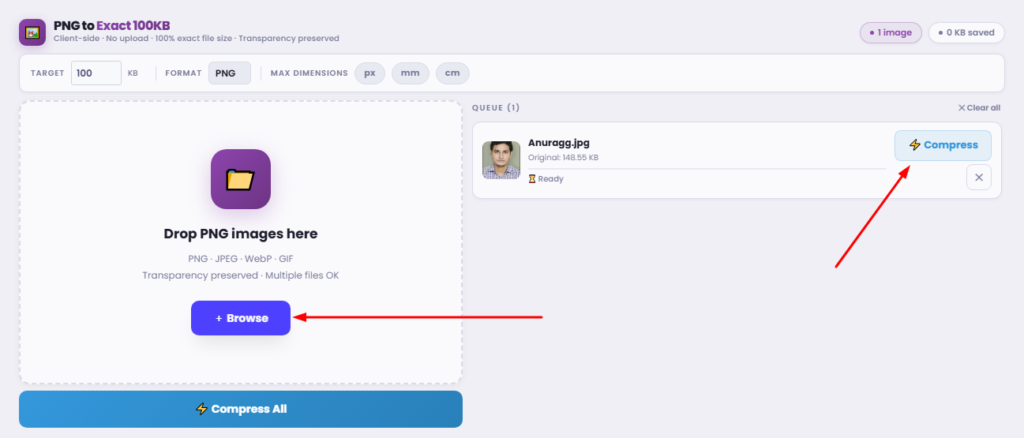
Transparency preserved · Multiple files OK
Add PNG images using the panel on the left.
They'll appear here ready to compress.
Effective Methods to Compress PNG Files
Have you ever tried to upload a crisp, high-quality image to a website, only to be blocked by a frustrating “file too large” error? You are certainly not alone. PNG (Portable Network Graphics) files are renowned for their incredible detail and ability to handle transparent backgrounds. However, this high fidelity comes at a steep cost: massive file sizes.
If you are struggling with a bloated website, bouncing visitors, or restrictive upload limits on government and job portals, learning how to appropriately compress these images is an essential digital skill. Let us explore exactly how to compress png to 100kb—and master various other compression benchmarks—so your digital assets remain both beautiful and incredibly lightweight.
The Core Dilemma: Why Is My PNG File So Large?
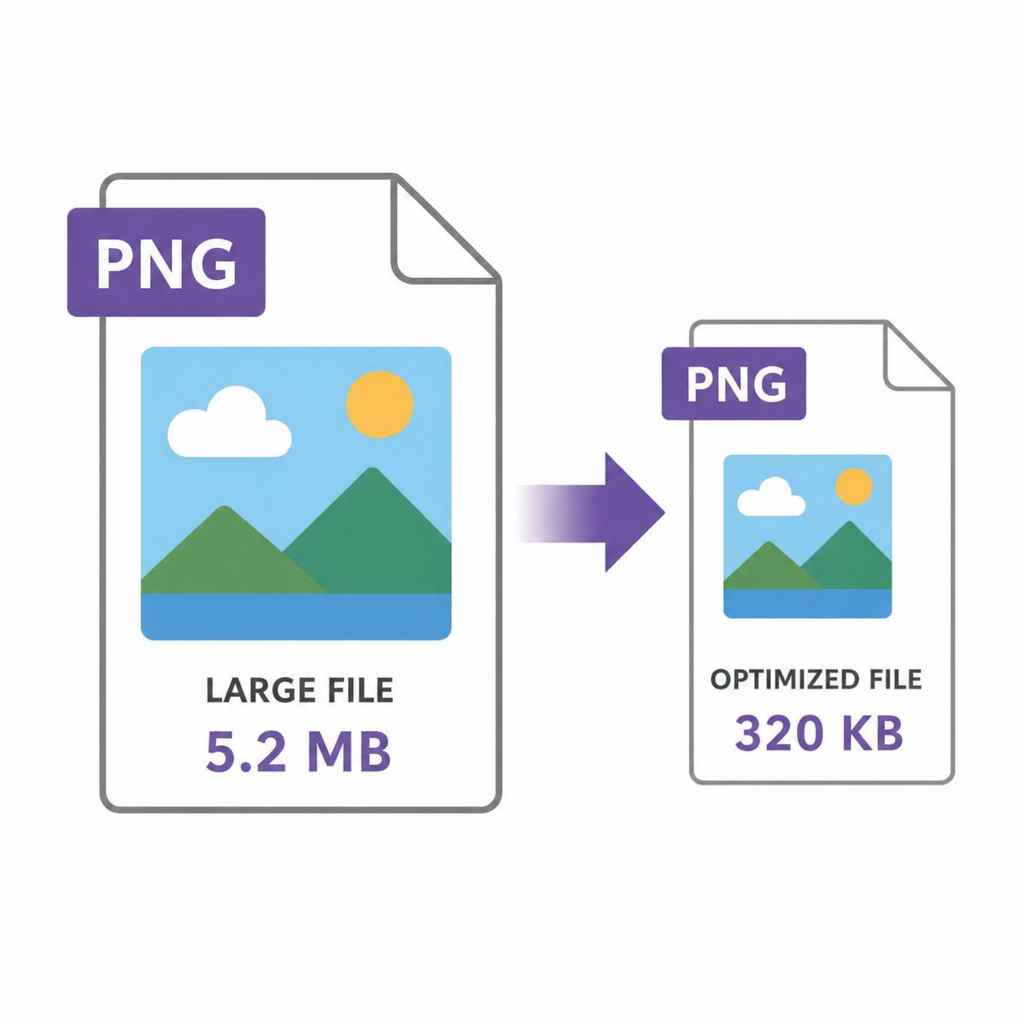
Before you can effectively reduce PNG file size, you need to understand what makes these files so heavy in the first place. PNGs were designed to replace older formats by offering rich, lossless data storage. This means that every single pixel’s color, transparency, and placement is meticulously recorded.
When analyzing a PNG-8 vs PNG-24 file size comparison, the difference becomes obvious. PNG-8 supports up to 256 colors, making it highly efficient for simple logos and icons. Conversely, PNG-24 supports over 16 million colors. While this results in stunning, photorealistic quality, saving a complex photograph as a PNG-24 will result in an enormous file.
Furthermore, the impact of image size on page load speed cannot be overstated. Search engines heavily penalize slow websites, and users will abandon a page if it takes more than a few seconds to load. Therefore, implementing strict image optimization for web performance is not just an option; it is a necessity for modern digital success.
Mastering the Basics: Lossless vs Lossy Compression Explained
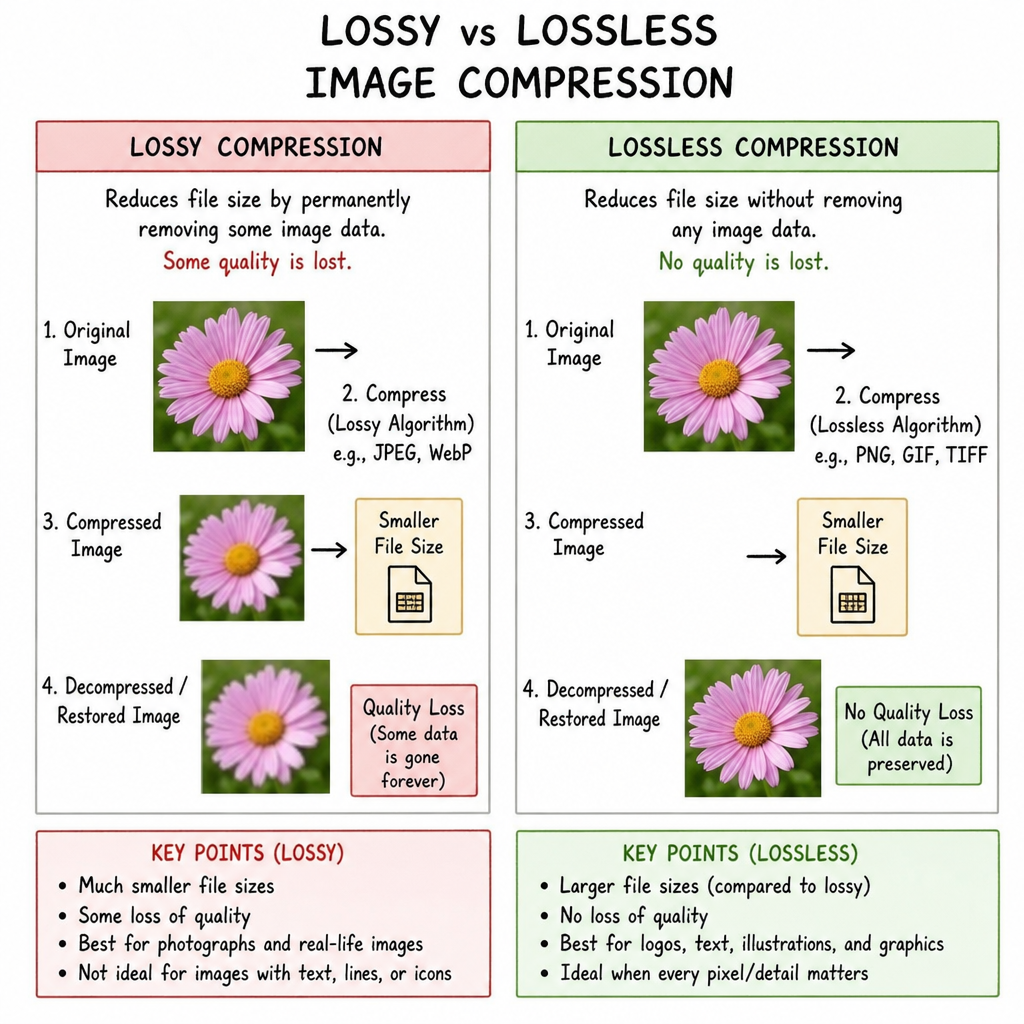
When you decide to compress PNG, you will typically encounter two primary methodologies. Understanding a lossless vs lossy compression explained breakdown is crucial for achieving your desired results.
- Lossless Compression: This method reduces file size by removing unnecessary metadata (like camera details and creation dates) and optimizing how the data is written, all without altering a single pixel of the actual image. This is ideal when your goal is to reduce PNG file size without losing quality. However, lossless compression rarely yields massive reductions.
- Lossy Compression: This technique permanently removes some of the original data. It groups similar colors together and discards microscopic details that the human eye cannot perceive. If you need a png size reducer to make a massive file incredibly small, lossy compression is the magic behind the curtain.
When you use a high-quality png optimizer, it utilizes a smart lossy algorithm, allowing you to minimize png files drastically while maintaining image clarity after compression.
Hitting the Sweet Spot: Target File Sizes
Depending on your specific needs, you might have different size constraints. Let us break down how to hit the most common upload thresholds.
1. How to Compress PNG to 100KB
The 100KB mark is the gold standard for web graphics, blog images, and standard portal uploads. To consistently compress png to 100kb, you should:
- Use an intelligent online picture compressor png.
- Limit your color palette if the image is a simple graphic (converting to PNG-8).
- Ensure that you are not saving large photographs as PNGs (JPEGs or WebPs are usually better for photos). If you have a strict limit, finding a dedicated png compressor to 100kb that allows you to set a maximum output size will save you a lot of trial and error.
2. How to Compress PNG to 50KB
Sometimes, you need to go even smaller—such as for thumbnail images, forum avatars, or incredibly strict email systems. To compress png to 50kb, you must be aggressive.
- You will likely need a specific png compressor to 50kb that applies heavy lossy compression.
- You must combine compression with resizing (more on this below).
- Expect a slight reduction in visual fidelity, though a good tool will keep the image perfectly recognizable.
3. How to Compress PNG to 200KB
If you are dealing with high-resolution hero images for a website layout, you might have a bit more breathing room. When you compress png to 200kb, you can usually rely entirely on light lossy compression or strict lossless compression, preserving near-perfect quality while still keeping web speeds fast.
Proven Strategies to Shrink Your Images
If you are wondering exactly how to shrink image kb for upload, do not rely on just one method. Combine the following techniques for the best possible results.
Adjusting Image Dimensions to Save Space
One of the most common mistakes people make is trying to compress a 4000×4000 pixel image without resizing it first. If your blog only displays images at 800 pixels wide, that extra data is completely wasted. Adjusting image dimensions to save space is step one. Simply scaling down the width and height will drastically cut the file weight before you even apply a compression algorithm.
Compressing Transparent Background Images
The defining feature of many PNGs is the alpha channel—the data that allows for transparency. Unfortunately, this channel adds significant weight. When compressing transparent background images, ensure your png file reducer explicitly supports transparency preservation. Some aggressive compressors will flatten the image and replace the transparent background with a solid black or white box, ruining the asset.
Convert Large PNG to WebP Format
If you are optimizing for a website and are not strictly bound to the PNG format, the absolute best strategy is to convert large PNGs to the WebP format. Developed by Google, WebP provides superior lossless and lossy compression for images on the web. It supports transparency just like a PNG, but generally results in files that are 26% to 39% smaller.
The Best Ways to Compress PNG Online
You do not need an expensive desktop application like Photoshop to handle these tasks. The internet is full of exceptional tools designed to compress PNGs online directly in your browser.
When searching for the best online tool for a high compression ratio, look for a platform that offers the following features:
- Drag-and-Drop functionality: For seamless usability.
- Visual comparison sliders: So you can see the original next to the compressed version to ensure you are able to compress PNG without losing quality.
- Batch processing: If you are a web designer or content creator, you need to be able to batch compress multiple images at once. Doing them one by one is a massive waste of time.
These browser-based tools act as an excellent free image resizer for email attachments. Instead of clogging up your recipient’s inbox, you can quickly run your graphics through an online compress png image utility and attach a clean, lightweight file.
Advanced Tips for Digital Professionals
For web developers and SEO specialists, simply hitting a target like PNG 100 kb is only part of the puzzle. Holistic optimization requires a deeper look into user experience.
Optimizing Visual Assets for Mobile Users
Mobile devices frequently operate on slower cellular networks, meaning heavy images cause massive delays. Optimizing visual assets for mobile users means you should serve different image sizes based on the user’s screen. Use responsive image tags (srcset in HTML) to serve a heavily compressed, smaller version of your PNG to mobile phones, while saving the slightly larger, higher-resolution version for desktop users.
File Format Auditing
Regularly audit your media library. Compress PNG file instances that contain flat colors and text, but actively transition complex photographs to JPEG or WebP. Use a dedicated compress PNG software locally on your machine if you are dealing with hundreds of legacy files that need a retroactive size reduction.
Conclusion
Dealing with digital image limits doesn’t have to be a frustrating experience. Whether you need to strictly compress PNG to 100kb to finalize an online application or you are simply looking for a reliable way to clean up your website’s media library, the right combination of resizing, lossy algorithms, and modern file formats will solve the problem.
By understanding the mechanics behind your image files, you can consistently reduce PNG file size efficiently. Remember to always adjust your dimensions first, utilize a high-quality online tool, and never be afraid to leverage modern alternatives like WebP. Armed with these techniques, you can ensure your visual content remains stunning, sharp, and perfectly optimized for the modern web.