
Multiple files OK · Client-side processing
Add PDF files using the panel on the left.
They'll appear here ready to compress.
Effective Methods to Compress PDF Files
Whether you are applying for a new job, submitting official government documents, or sending a quick portfolio to a client, you have likely encountered the dreaded “file size too large” error. In the digital age, a bulky document can bring your workflow to a sudden halt. While high-resolution files are great for printing, they are often a nightmare for digital sharing.
Understanding how to navigate file constraints—specifically when you need to compress pdf 200kb limits—is a necessary digital skill. Below, we dive into the mechanics of document compression, exploring the most effective techniques, software differences, and advanced troubleshooting methods to ensure your files are perfectly optimized every time.

Why Strict File Limits Exist
You might wonder why portals demand such tiny file sizes. Most government, academic, and corporate databases process thousands of uploads daily. By mandating a strict PDF size limit of 200kb limit, these organizations save vast amounts of server storage and ensure quick load times for processing personnel.
Knowing how to reduce pdf size for online application forms is essential, as these portals often employ hard-coded limits that instantly reject anything larger than their specified threshold. Similarly, if you are figuring out how to shrink documents for email attachments, keeping your files lean prevents them from bouncing back or getting flagged by the recipient’s spam filter. Whether you need a massive reduction or a precise PDF resize in kb, mastering file optimization saves both time and frustration.
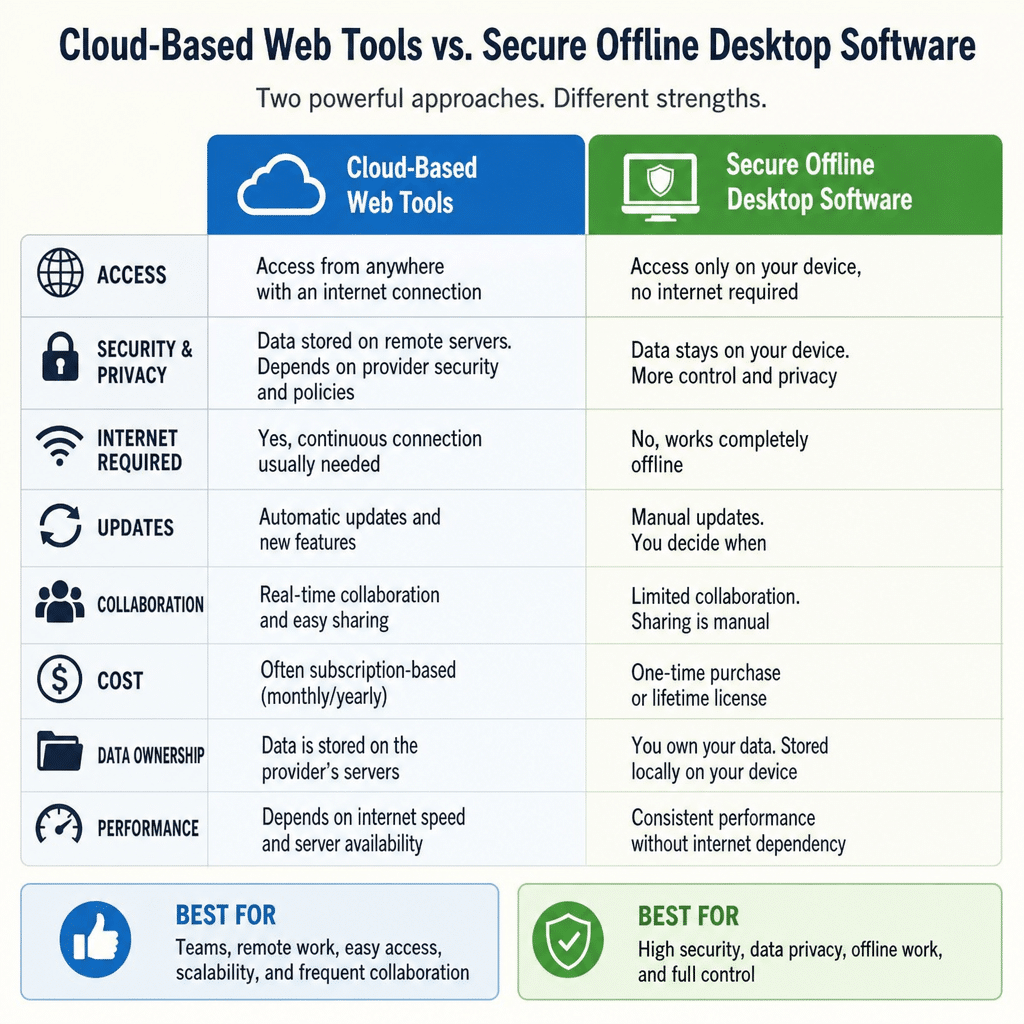
The Great Debate: Online vs. Offline Compression
When it’s time to shrink your document, the first choice you face is selecting the right tool.
Web-Based Tools
If you want to resize pdf file to 200kb online, the internet is filled with intuitive options. Users love web-based platforms because they require no installation. You simply drag, drop, and download. When weighing browser-based vs software-based file optimization, browser tools win on convenience. Finding a dedicated 200kb pdf compressor online usually takes just a simple search, giving you instant access to algorithms that aggressively shrink your files.
However, online platforms pose a potential privacy risk. If your document contains sensitive data like financial records or personal identification, uploading it to a third-party server might not be the wisest choice.
Desktop Software
For sensitive information, you need secure ways to minimize PDF file size offline. Using installed desktop software ensures your data never leaves your hard drive. While many professionals default to industry standards, there are numerous alternative methods to Adobe Acrobat for file shrinking. Programs like Foxit PhantomPDF, Nitro Pro, or even built-in OS tools (like Mac’s Preview) offer robust, offline compression capabilities. These tools allow for granular control, making it much easier to reduce the PDF size to 200 KB without sacrificing privacy.
The Mechanics of Shrinking a PDF
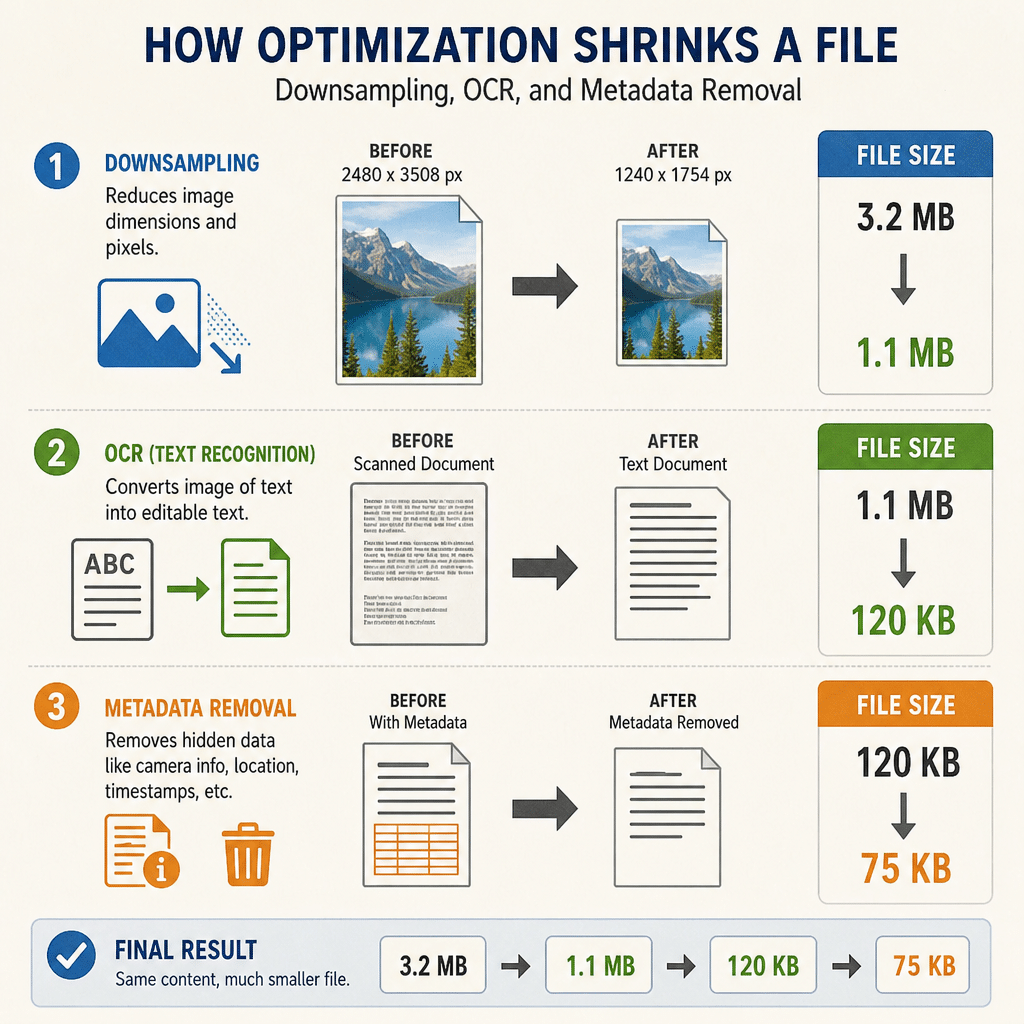
To effectively reduce a PDF to 200 KB, it helps to understand what makes a PDF heavy in the first place. High-resolution images, embedded fonts, unseen metadata, and complex color profiles all contribute to a bloated file.
Here are the most effective technical tweaks you can apply using the best free tools for resizing PDF documents:
1. Optimize Image Settings
Images are usually the primary culprits of large file sizes. However, you don’t want your charts or headshots to become unrecognizable pixels. The trick lies in maintaining image resolution during PDF file reduction.
- Downsampling: Start by lowering the DPI settings for smaller file output. A document meant for web viewing only needs 72 DPI (Dots Per Inch), whereas print requires 300 DPI. Dropping your document to 72 or 144 DPI will drastically reduce its weight.
- Image Format: Convert embedded images to compressed JPEGs rather than lossless PNGs.
2. Streamline Text and Metadata
If your document has no images and is still huge, the text encoding and hidden data are to blame.
- Lossless Compression: Utilize lossless compression methods for text-heavy files. This algorithm rewrites the document’s code to take up less space without altering a single visual element.
- Font Subsetting: Instead of embedding an entire font family (bold, italic, light) into a document, subset the fonts. This means the PDF only saves the specific characters used in the text.
- Clear the Junk: You must adjust PDF metadata and fonts to save space. Deleting XML metadata, bookmarks, thumbnails, and comments can shave off precious kilobytes.
3. Taming Scanned Documents
Scanned documents are notoriously large because scanners treat every page as one massive, high-resolution photograph. If you are learning how to optimize scanned PDFs for web use, you should always apply Optical Character Recognition (OCR). OCR technology scans the “image” of the text and converts it into actual, selectable text data, which is mathematically much lighter than a high-res image.
How to Execute a Flawless Compression
If your goal is to reach that specific target, here is a practical approach to compress pdf 200kb successfully:
- Assess the File: Check the current size. If you have a 10MB file and need a pdf resize 200 KB output, you need aggressive, “high” compression settings.
- Choose Your Tool: Select an online compressor or your preferred offline software.
- Select the Compression Level: Most tools offer Basic and Strong compression. To compress a PDF up to 200 kb, you will likely need the Strong setting.
- Process and Verify: Run the compression. Open the resulting file to ensure the text is legible and the images are clear.
- Rename and Save: Save the optimized file clearly, so you know it represents your PDF to a PDF 200kb converted version.
Tackling Complex Compression Needs
Batch Processing for High Volumes
What happens when you have fifty invoices that all need to meet a portal’s strict size limit? Processing them one by one is a massive waste of time. Look for premium desktop tools or specialized online platforms that allow batch processing of multiple documents to specific kilobyte limits. By setting a universal parameter (e.g., max size 200KB, 72 DPI, grayscale), you can optimize entire folders of documents simultaneously.
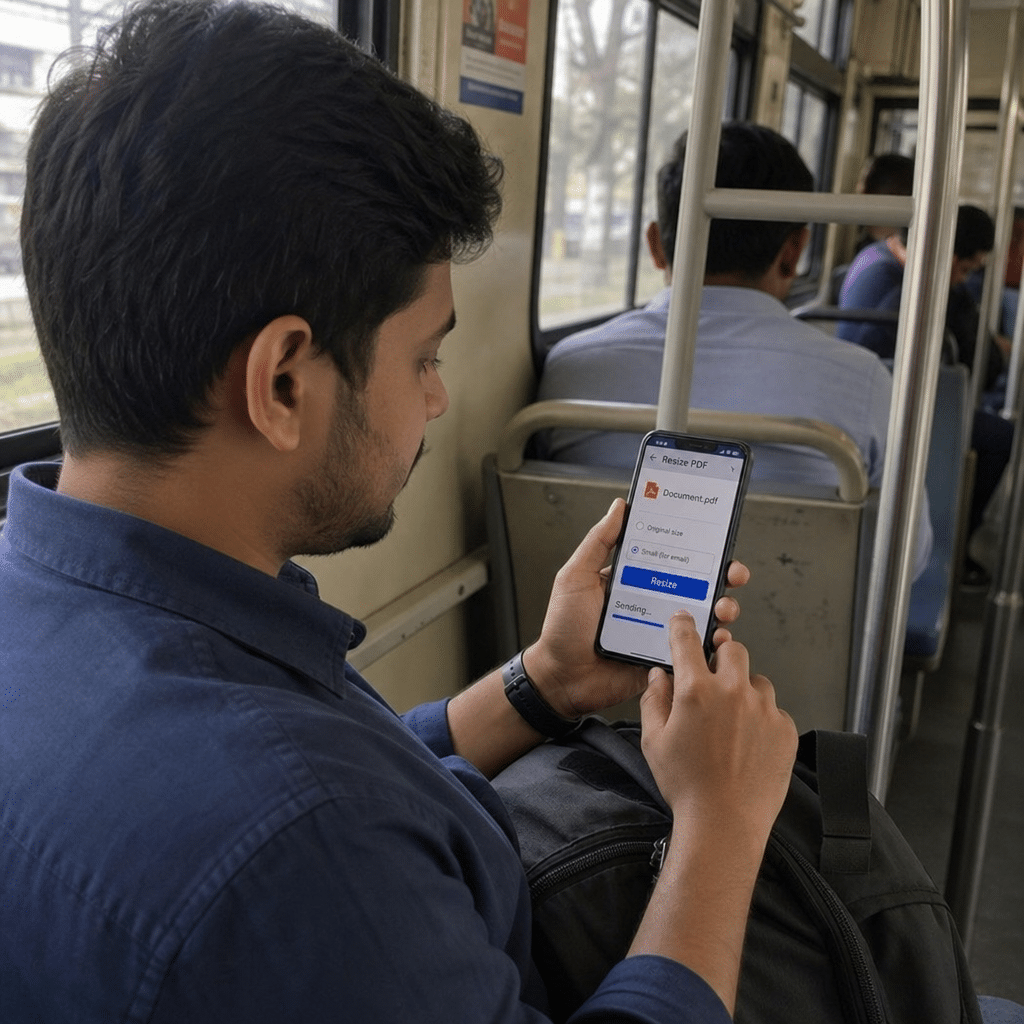
Working on the Move
In today’s fast-paced world, you might need to apply for a job or submit a form while commuting. Fortunately, there are plenty of mobile-friendly ways to resize documents on the go. Both iOS and Android have dedicated compression apps in their respective stores. Additionally, built-in features like the “Files” app on iOS allow you to create PDFs from images with automatic size reduction options when sharing via email.
Troubleshooting: When Compression Isn’t Enough
Sometimes, you follow all the steps, but the file remains stubbornly large. If you are wondering, “Why does PDF compression fail to reach the target size?” it usually comes down to embedded elements that standard compressors cannot bypass.
Here are tips for troubleshooting large PDF file size issues:
- Flatten the PDF: Interactive elements, fillable form fields, and digital signatures add hidden weight. “Flattening” the PDF merges all these layers into a single static document, significantly reducing the file size.
- Convert to Grayscale: Color profiles take up data. If the document doesn’t strictly require color, print it to PDF in black and white.
- Split the Document: If you are trying to compress pdf 200kb but the document is 50 pages long, you are fighting a losing battle against physics. In this case, extract only the pages you actually need to submit, or split the document into “Part 1” and “Part 2”.
- Re-Save as PDF: Sometimes a file’s code gets corrupted or bloated over multiple edits. Simply opening the file and selecting “Print > Save as PDF” can rewrite the architecture and instantly strip away unseen, residual bloat.
Summary
Navigating digital size restrictions doesn’t have to be a headache. By understanding the core mechanics of what makes a document heavy, you can easily take control of your digital paperwork. Whether you choose the rapid convenience of a browser tool, the security of offline software, or the necessity of mobile apps, you now have the blueprint to optimize any file.
Remember to prioritize lowering DPI for images, streamlining your text through subsetting, and clearing out unnecessary metadata. With these strategies in your toolkit, you will confidently bypass those frustrating upload limits and ensure your documents are perfectly optimized for fast, secure sharing every single time.