
Multiple files OK
Add images using the panel on the left.
They'll appear here ready to compress.
How to Compress Image to 15KB Efficiently
Compressing images to 15KB is a vital skill in today’s digital world. It ensures faster loading times and a better user experience.
Whether you’re a photographer, web developer, or blogger, optimizing images is crucial. It can significantly enhance your website’s performance and SEO.
Many tools and techniques are available to help you achieve this without losing quality. From online converters to desktop software, the options are vast.
Understanding the balance between image quality and file size is key. This guide will walk you through efficient methods to compress images to 15KB.
You’ll learn about the best tools, techniques, and tips to make your images web-ready.
Why Compress Image to 15KB?
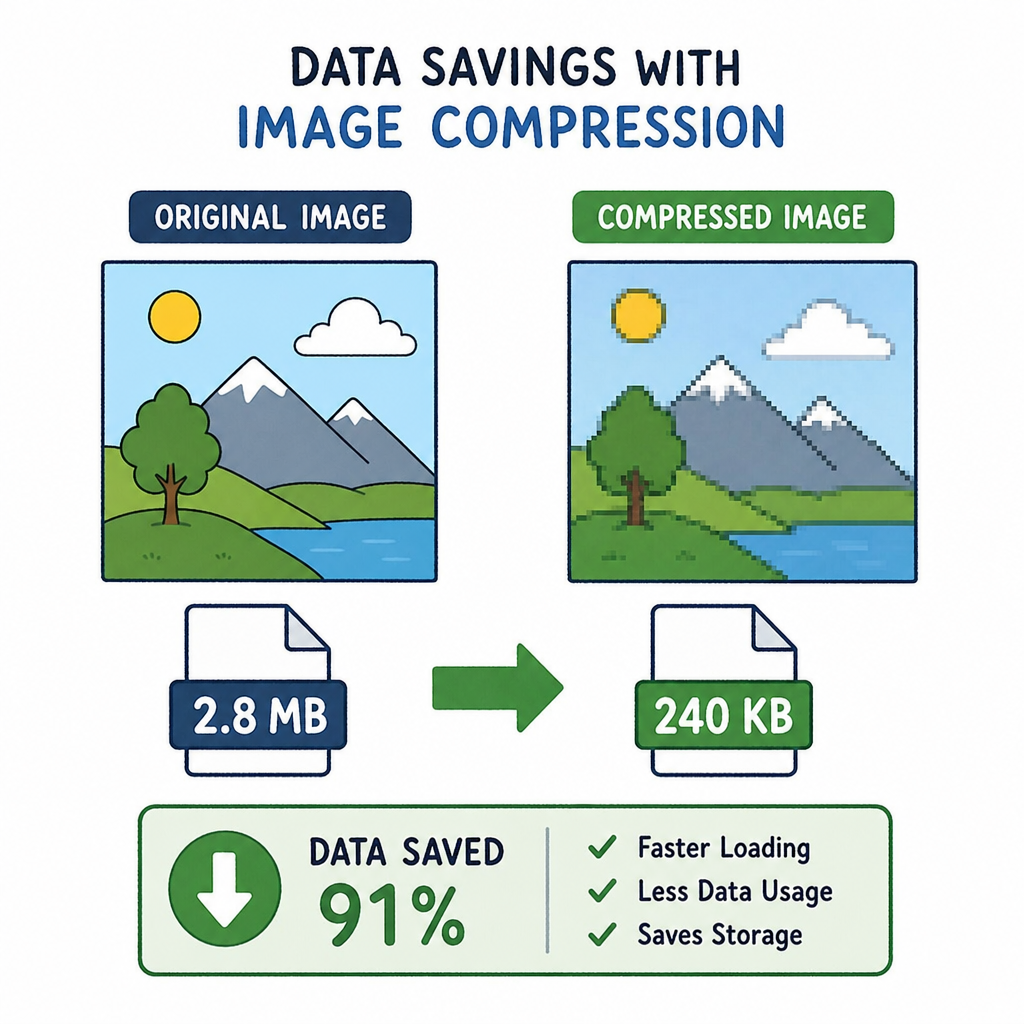
Compressing images to 15KB offers numerous advantages for website performance and user engagement. Smaller images load more quickly, reducing the time visitors spend waiting.
Faster loading times contribute to better search engine rankings. Google and other search engines prefer speedy websites. This results in higher visibility and potentially more traffic.
A 15KB image size can also save storage space and reduce bandwidth usage. This is especially beneficial for websites with many images, such as e-commerce stores.
For mobile users, smaller images ensure smoother browsing. This is crucial as a growing number of users access content via mobile devices.
Additionally, compressing images helps create a more sustainable web environment. Minimizing data usage, it contributes to energy savings and sustainability efforts.
Benefits of compressing images to 15KB:
- Improved website loading times.
- Higher SEO rankings.
- Reduced storage and bandwidth needs.
- Enhanced user experience on mobile devices.
- Contribution to a sustainable digital ecosystem.
Understanding Image Compression: Lossy vs. Lossless
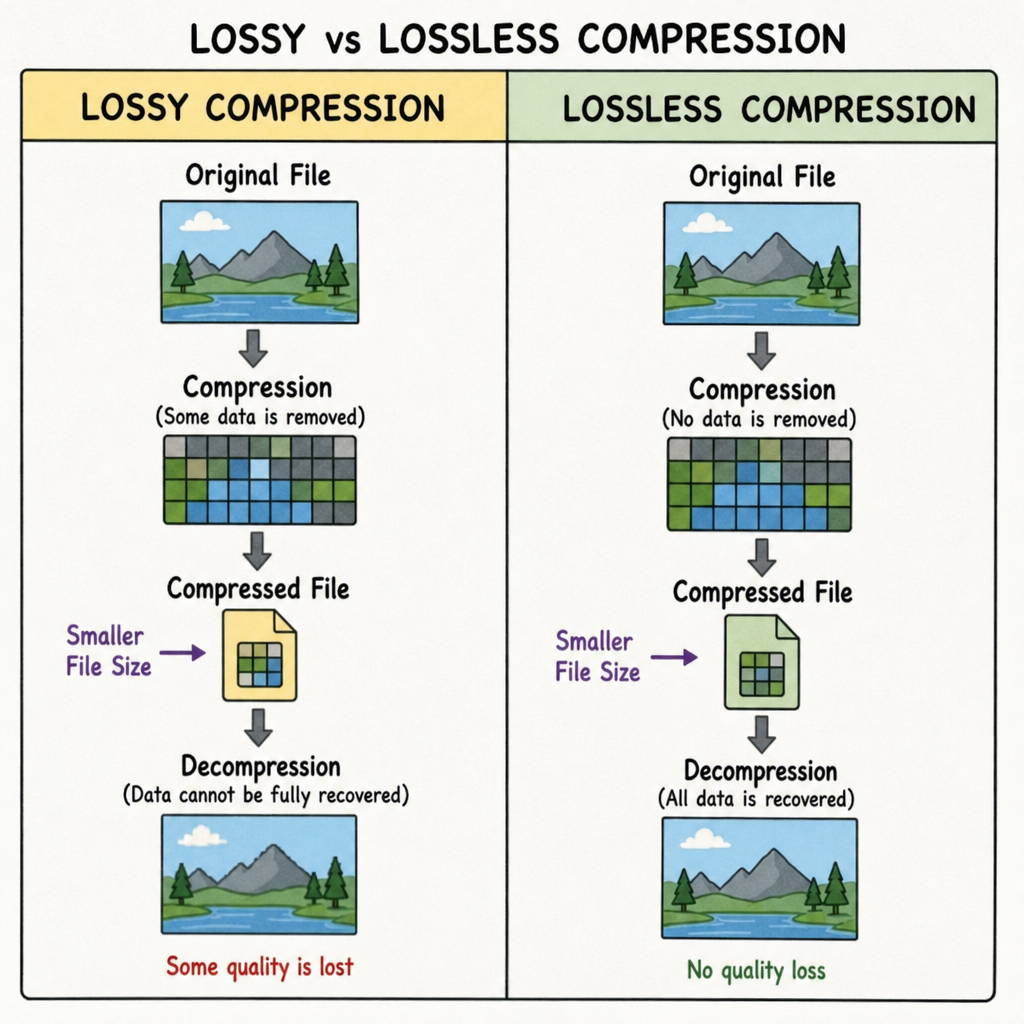
Image compression is essential for reducing file size while maintaining quality. It comes in two main types: lossy and lossless.
Lossy compression reduces image size by removing some data permanently. This often results in a smaller file size, but there may be a slight decline in quality.
Lossless compression, however, preserves all image data. It typically results in a larger file size than lossy, but retains the original quality.
Choosing between lossy and lossless depends on your image needs. For web use, lossy is often sufficient and more efficient.
Benefits of each type:
- Lossy Compression: Smaller file sizes, faster load times.
- Lossless Compression: Maintained quality, perfect for high-detail images.
A good grasp of both methods helps in selecting the right one for your specific application, optimizing image performance without compromising on quality.
Choosing the Right Image Format for 15KB Compression
Choosing the correct image format is vital when compressing an image to 15KB. The most common formats are JPEG, PNG, and GIF, each serving distinct purposes.
JPEG is preferred for photographs due to its efficient lossy compression. It balances good quality with smaller file sizes. PNG is better for images requiring transparency, though it may result in larger files than JPEG.
GIF is useful for simple animations or graphics with limited colors. However, it may not compress photographs as effectively as JPEG or PNG.
Consider these points when selecting a format:
- JPEG: Best for photos, smaller file size.
- PNG: Good for transparency, better for graphics.
- GIF: Suitable for animations, limited color range.
Understanding these formats aids in achieving optimal compression while ensuring your images meet your quality requirements.
Top Online Tools to Compress Image to 15KB
Compressing images to 15KB online is straightforward with the right tools. Many online platforms offer efficient compression with minimal quality loss.
TinyPNG is a popular choice. It supports both JPEG and PNG, balancing size reduction with quality retention.
JPEG Optimizer allows users to compress jpeg to 15kb by adjusting compression levels. It’s perfect for those seeking manual control.
CompressJPEG is user-friendly, providing bulk image compression. It’s ideal for quick jobs and supports various formats.
Here’s a quick list of top tools:
- TinyPNG
- JPEG Optimizer
- CompressJPEG
Each tool has unique features. TinyPNG excels at batch processing, saving time on multiple images. JPEG Optimizer provides detailed control for precise adjustments.
CompressJPEG emphasizes simplicity, making it accessible for beginners. Try different tools to see which suits your needs best.
 by Imam Fadly (https://unsplash.com/@haiiimam)
How to Compress Image to 15KB Online: Step-by-Step Guide
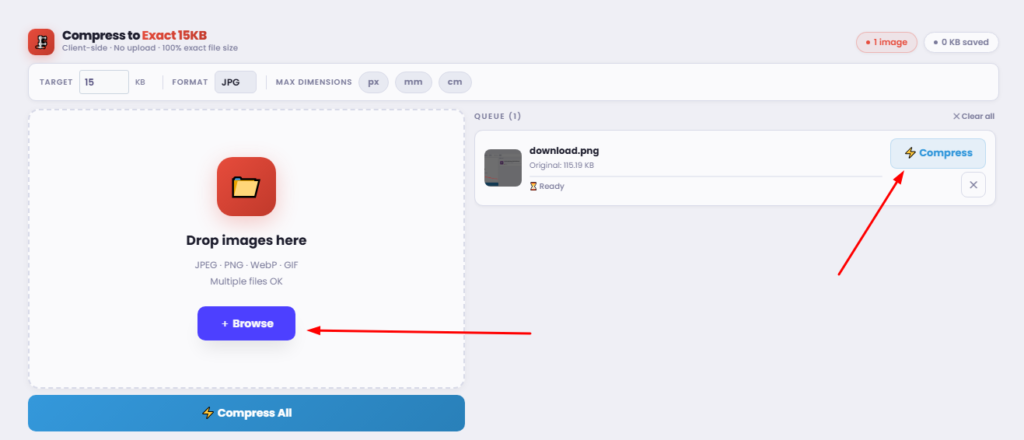
Compressing images online is convenient and requires no software installation. Here’s how to compress a photo to 15KB using online tools.
First, select the right tool, such as TinyPNG or CompressJPEG. These tools are efficient for compressing images online.
Upload your image by clicking the ‘Upload’ button. Most platforms allow easy drag-and-drop functionality.
Once uploaded, adjust the compression settings. Some tools offer sliders for manual control, enabling precise adjustments.
Next, select the desired output format. Converting an image to JPG can help achieve the 15KB target.
Click ‘Compress’ or ‘Optimize’ to start the process. The tool will reduce the image size while maintaining quality.
Finally, download your compressed image. Verify the file size to ensure it meets your requirements.
By following these steps, you can easily resize images to 15KB without compromising quality.
Compressing Images to 15KB with Desktop Software
Using desktop software for image compression offers more control. Tools like Adobe Photoshop and GIMP are versatile options.
Open your image in the software. This initial step is crucial for editing and compression.
Navigate to the ‘Export’ or ‘Save As’ option. Most software includes these features for format conversion and size reduction.
Adjust the image quality settings to lower levels. Each tool provides sliders or input boxes for precision.
Choose ‘JPEG’ or ‘JPG’ as the format for ideal compression. This file type balances quality and file size well.
Save your changes to finalize the compression process. Ensure the output file is around 15KB.
Advantages of Desktop Tools:
- Advanced editing options
- Higher control over compression
- Batch processing capabilities
Use desktop software for more detailed compression tasks. It suits users needing enhanced customization and frequent usage.
Tips to Achieve 15KB Without Losing Quality
Reducing an image to 15KB can be tricky, but not impossible. The key lies in making smart choices while compressing.
Start by decreasing the image dimensions. Smaller images naturally require fewer bytes, which aids compression.
Adjust the color depth for further size reduction. Limiting colors can significantly lower the file size.
Experiment with compression settings. Tools often offer sliders to refine quality vs. file size.
Consider cropping unnecessary parts of the image. Removing excess details can help maintain clarity.
Preview your compressed image before finalizing. This step ensures you maintain acceptable quality.
Pro Tips:
- Use JPEG format for photos
- Avoid excessive sharpening
- Regularly compare the original and compressed versions
Implementing these strategies will help you achieve target sizes efficiently. Balancing quality and size is crucial.
Batch Processing: Compress Multiple Images to 15KB
Handling multiple images can be time-consuming. Batch processing tools simplify this task by compressing multiple files simultaneously.
Select a tool that supports batch processing. Adobe Photoshop and some online services offer this feature.
Upload your images, and set the desired compression level. The tool will apply settings to each file.
Using batch processing not only saves time but also ensures consistency across all images.
Advantages of Batch Processing:
- Time-efficient
- Consistent output
- Easy to manage large quantities
Optimize your workflow with batch processing. This technique is ideal for projects with lots of images.
 by Kelsey Todd (https://unsplash.com/@sparkledump)
Common Issues and How to Fix Them
Compressing images to 15KB can present challenges. Blurriness or unexpected color shifts might occur, impacting quality.
To resolve blurriness, use lower compression levels. Preserve essential details by adjusting settings.
Color shifts may arise from format incompatibilities. Select compatible formats or conversion tools.
Troubleshooting Tips:
- Reduce compression incrementally
- Use compatible formats
- Adjust color settings
Addressing these issues ensures better image quality. Always review your images post-compression for optimal results.
Use Cases: Who Needs 15KB Images?
Images compressed to 15KB are ideal for specific scenarios. These smaller files are crucial for enhancing online efficiency.
Potential Users Include:
- Web developers optimizing site speed
- Digital marketers are reducing load times
- Bloggers managing limited storage
E-commerce sites benefit too, showcasing faster-loading product images. This enhances the user experience significantly.
In social media, quick-loading visuals keep audiences engaged. Compact images are also easier to share via email without exceeding attachment limits.
Frequently Asked Questions About 15KB Image Compression
Is quality compromised at 15KB?
Using advanced tools, you can maintain quality while compressing images to 15KB.
How long does the process take?
Online tools make compression quick, often completing in seconds.
What if my image is too complex?
Consider reducing the dimensions or simplifying colors to meet size limits.
Can batch processing be done for 15KB sizes?
Yes, many tools support batch processing, compressing multiple images simultaneously with ease.
Conclusion: Best Practices for Compressing Images to 15KB
Compressing images to 15KB can have numerous benefits, from faster website loading to reduced storage needs. Using the right tools and techniques is key.
Firstly, always choose the right format. JPEG is often best for photos, but PNG may work better for graphics with transparency.
Secondly, use online tools and software wisely to ensure you achieve desired results. Previewing images before finalizing compression ensures quality is retained.
Finally, consider these best practices for effective image compression:
- Use batch processing to save time.
- Regularly update your compression tools.
- Experiment with color depth reduction.
By following these tips, you can efficiently compress images to 15KB without compromising quality.