
Multiple files OK
Add images using the panel on the left.
They'll appear here ready to compress.
Effective Methods to Compress JPEG Images
Compressing JPEG to 50KB is a common need today. Many online platforms require small image sizes for uploads.
Whether it’s for job applications or government forms, size matters. A smaller file size ensures faster uploads and meets specific requirements.
But how do you compress a JPEG without losing quality? This guide will show you effective methods and tools.
From online tools to desktop software, there are many options available. You’ll learn how to maintain image quality while reducing size.
Let’s explore the best ways to compress JPEG to 50KB efficiently. Your images will be ready for any online submission.
Why Compress JPEG Images to 50KB?
Compressing JPEG images to 50KB serves a variety of purposes. Many websites and applications have strict image size requirements. Smaller files are easier to upload and share.
When you compress images, you save on storage space. This is crucial for maintaining a tidy digital library. It also aids in faster online navigation and data management.
JPEG compression ensures that quality is preserved while reducing size. The balance between quality and size is essential for professional use. Poor image quality can lead to a negative impression.
Here are some key reasons why compressing to 50KB is beneficial:
- Faster upload speeds
- Compliance with platform requirements
- Efficient storage and sharing
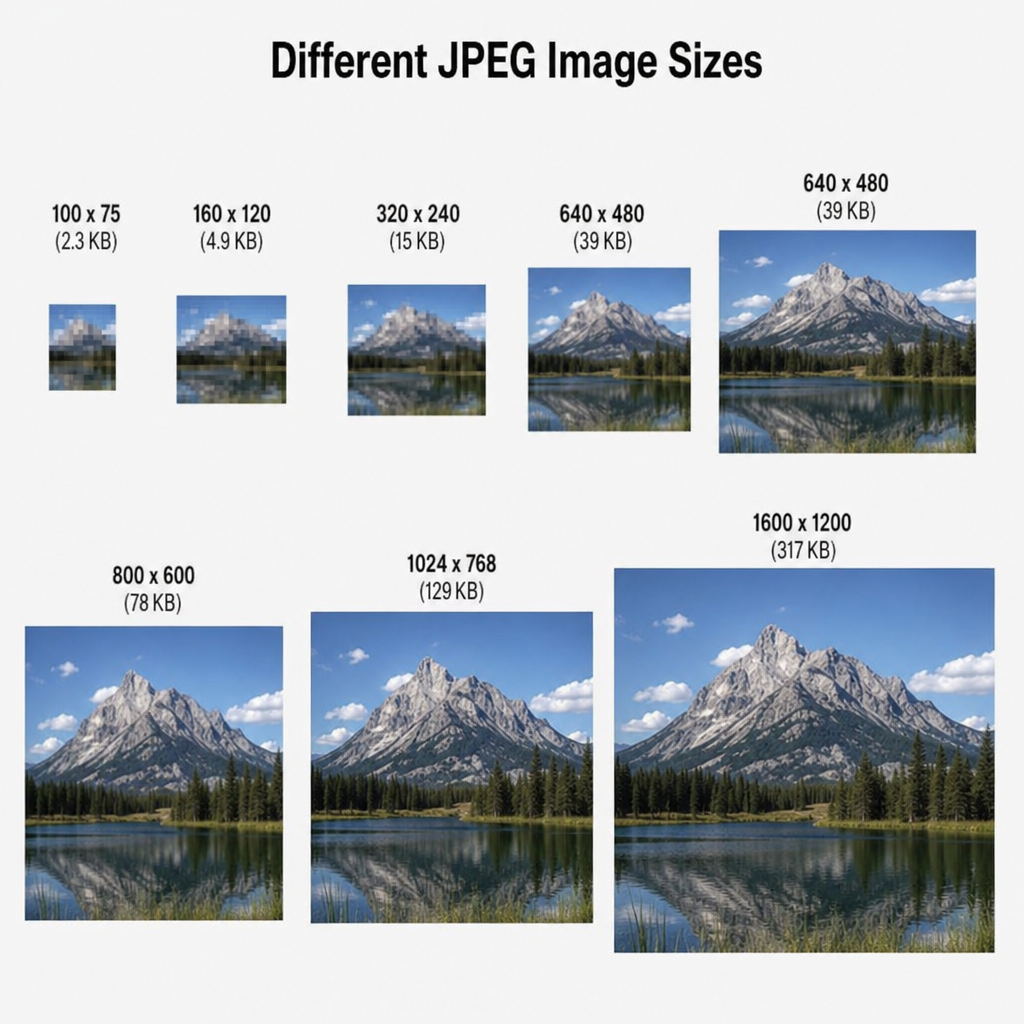
For passports or official documents, size reduction is often necessary. It guarantees that you meet the criteria for digital submissions. Understanding JPEG compression helps in achieving these goals effectively.
Understanding JPEG Compression: Quality vs. Size
JPEG compression involves a trade-off between image quality and file size. By reducing file size, you may lose some details in the image. However, with the right methods, you can maintain acceptable quality.
The compression process reduces image data. This results in a smaller, more manageable file. It is especially useful for large photo collections and web pages.
To understand JPEG compression better, consider these points:
- Lossy compression discards unnecessary image data.
- Lossless compression keeps all data intact, but file size reduction is limited.
- Quality settings can significantly impact the final output.
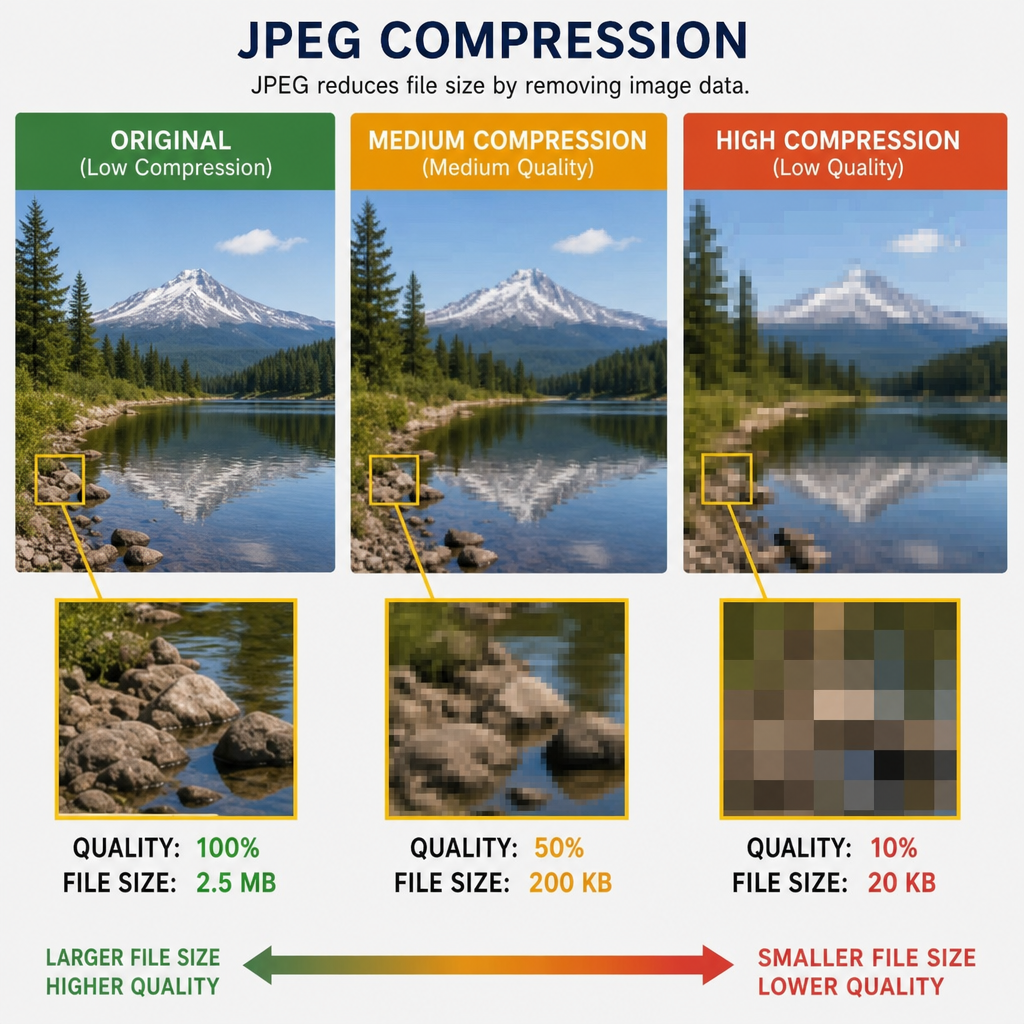
Choosing the right balance is key. While more compression reduces file size, too much can degrade quality. When compressing to 50KB, aim for a high-quality setting that still achieves your size target. This approach ensures clarity while meeting size constraints.
Common Use Cases: Passport, Signature, and Online Forms
JPEG compression is essential for meeting specific size requirements in different scenarios. Many platforms require images to be under a certain size for uploads. This includes documents like passports and signatures.
For a 50KB passport size photo, compression ensures that online application forms accept your image. This is important for visa and job applications. Similarly, compressing a signature to 50KB enables easy uploading for digital documentation.
Here are common use cases for compressing JPEGs to 50KB:
- Passport photos for identity proofs.
- Digital signatures for electronic forms.
- Profile pictures for professional platforms.
 by Global Residence Index (https://unsplash.com/@globalresidenceindex)
Online forms often have strict guidelines regarding image sizes. Compressing JPEGs ensures adherence to these rules, preventing rejected submissions. Effective compression maintains the quality and clarity required for identity verification.
Essential Preparation Before Compression
Before compressing JPEG images, ensure you have a backup of the original files. This helps preserve the original quality for future needs. Backups prevent loss of important details during compression errors.
Check the required specifications of the image, such as dimensions and format. Knowing these specifics guides the compression process efficiently.
Here are steps to prepare for image compression:
- Backup original images.
- Verify image dimensions and format.
- Determine the required file size.
Ensuring these preparations sets a strong foundation for compressing images effectively. Proper setup minimizes issues while optimizing the compression workflow.
Online Tools to Compress JPEG to 50KB
Online tools offer a quick and easy solution for compressing JPEG images to 50KB. These tools are accessible without downloading any software, which is convenient for users with limited storage.
Some popular online platforms include TinyPNG, JPEG Optimizer, and Compress JPEG. These websites allow users to compress images without compromising too much on quality.
Using online tools is straightforward, involving a few simple steps. Users upload their JPEG files, adjust compression settings, and then download the compressed images. This process usually takes only a few minutes.
Here are some recommended online tools:
- TinyPNG
- JPEG Optimizer
- Compress JPEG
Most online tools provide various options, like maintaining the aspect ratio, to ensure the image remains proportional. They also support drag-and-drop functionality, enhancing ease of use. It’s crucial to check the final image quality before using it for critical applications.
Privacy remains a concern when using online tools. Ensure the service does not retain your images post-compression. Checking for privacy policies is a good practice.
Step-by-Step: Compress JPEG to 50KB Online
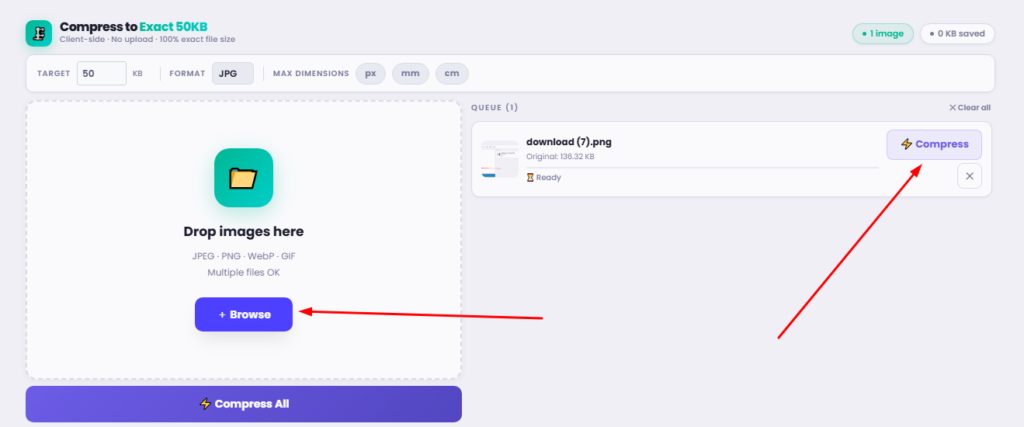
Compressing a JPEG to 50KB can be achieved in a few simple online steps. First, visit a trusted image compression website like TinyPNG or JPEG Optimizer.
Start by selecting the “Upload” button and navigating to your desired JPEG image. Some platforms allow drag-and-drop, making it easier to upload files.
Adjust the compression settings to meet the 50KB requirement. Most websites have sliders or manual entry fields for compression level.
Here is a simple guide:
- Go to a compression tool like TinyPNG.
- Upload your JPEG file.
- Adjust compression settings to the desired file size.
- Download the compressed image.
After making the adjustments, download the image. Double-check the file size before finalizing the process. Ensure that the quality remains acceptable for your intended use, as some loss might occur.
Using Desktop Software for Advanced Compression
Desktop software offers more detailed control over JPEG compression. Tools like Adobe Photoshop and GIMP are popular for this purpose. They provide advanced features that online tools might lack.
For professionals needing precise adjustments, desktop applications are invaluable. They offer settings for quality, resolution, and dimensions. This allows users to tailor the compression to specific requirements without significant quality loss.
Here’s how you can use desktop software effectively:
- Adjust Quality Settings: Lowering quality can reduce file size.
- Change Image Dimensions: Smaller dimensions can decrease the size.
- Utilize Batch Processing: Compress multiple files simultaneously.
GIMP, for instance, allows you to adjust the image quality and dimensions before saving. This flexibility ensures the image remains fit for purpose post-compression.
Desktop tools often have higher fidelity in output than online tools. However, they require installation and may be more resource-intensive. Regular updates are also necessary to access the latest features and algorithms for compression.
Compressing JPEGs on Mobile Devices
Mobile devices offer convenience for compressing JPEGs anywhere. Apps like Photo Compress 2.0 and JPEG Optimizer are effective. They provide simple interfaces and quick solutions.
These apps are ideal for users on the go. They allow basic adjustments to image quality and dimensions. This is perfect for fast processing without a computer.
Here’s how to make the most of mobile apps:
- Select an appropriate app: Choose one that meets your needs.
- Set Quality Level: Adjust as needed for file size.
- Review Before Saving: Ensure quality is acceptable.
 by Nik (https://unsplash.com/@helloimnik)
Despite fewer features than desktop software, mobile apps are practical. They support fast edits and uploads, making them great for busy schedules. Regular app updates are recommended for improved features and performance.
Tips to Maintain Image Quality at 50KB
Maintaining image quality while compressing JPEGs to 50KB is crucial. Balancing size with clarity involves careful tweaks. Start by reducing dimensions before quality for better results.
Experiment with various compression settings available in tools. Many tools offer a quality slider; find a sweet spot between 60-80%. This often maintains acceptable detail in photos while still shrinking file size.
Additional strategies include:
- Use Lossless Compression: If available, it retains more detail.
- Limit Dimension Reduction: Too much can distort the image.
- Check Final Image: Always preview before saving.
Preserving image clarity demands paying attention to these details. Practice with different methods until you find the best balance for your needs.
Troubleshooting: Common Issues and Solutions
Compressing images to 50KB can sometimes lead to unexpected issues. Common problems include blurry images or unsatisfactory quality. Identifying these issues early can save time and frustration.
To tackle these, begin by checking the original image resolution. High-resolution files compress better and retain quality. If the image looks pixelated, it might be due to excessive dimension reduction.
Here are quick solutions:
- Recheck Compression Settings: Ensure settings are not too aggressive.
- Use Different Tools: Some tools are more effective than others.
- Start from Original: Avoid compressing previously compressed images.
With practice, mastering these troubleshooting steps becomes easier. Adapting the process ensures smoother results in image compression.
Frequently Asked Questions
Compressing JPEG images comes with various queries. These answers clarify common concerns, helping you achieve the desired results.
How can I ensure good image quality at 50KB?
Using high-quality sources and selecting appropriate compression settings often keeps the quality intact.
Are online tools safe to use?
Most are reliable, but it’s prudent to review their privacy policies before uploading sensitive images.
What if my image remains too large?
Try adjusting compression levels or utilizing a different tool until the size reduces effectively.
Can I compress multiple images simultaneously?
Yes, many tools offer batch processing capabilities for efficient handling.
Conclusion: Best Practices for JPEG Compression
Successfully compressing JPEG images to 50KB requires a thoughtful approach. Selecting the right tool is vital for achieving the desired balance of size and quality. Each tool or method has its own strengths, so exploring a few options can be beneficial.
Bear in mind the intended use of the image and any specific submission guidelines. This ensures your compressed images meet both quality and format requirements. Regularly updating your software and tools can enhance compression capabilities, providing access to improved algorithms.
Finally, practice caution by maintaining backups of original images. This safety net allows you to recompress images as needed or use them in different formats.