
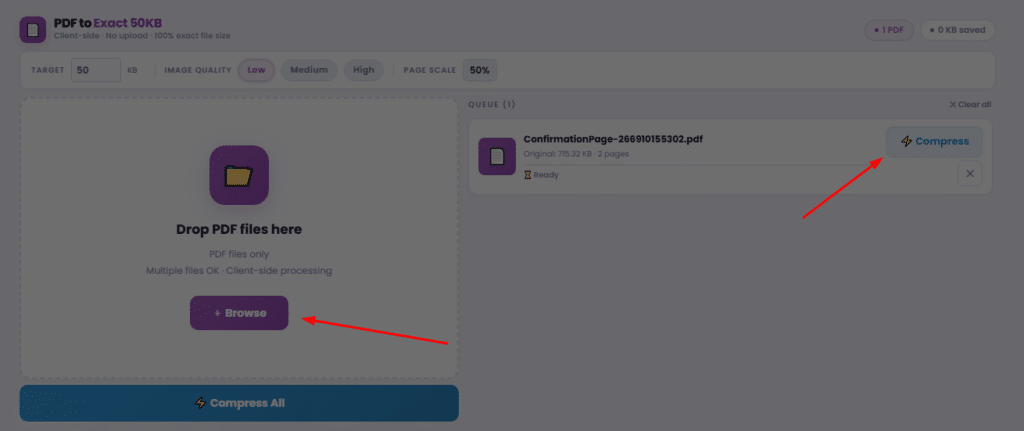
Multiple files OK · Client-side processing
Add PDF files using the panel on the left.
They'll appear here ready to compress.
How to Compress PDF Files to 50KB
We have all experienced that sudden moment of frustration. You have spent hours perfecting a digital application, you go to upload your requested documents, and a bold red error message stops you in your tracks. You need to fix pdf file too large for upload.
Whether you are uploading a resume to a job board, submitting identity documents to a government portal, or finalizing college admissions, strict file size limits are everywhere. Often, these platforms require you to reduce pdf size for online application systems that run on legacy servers. When the instructions explicitly tell you to compress pdf to 50kb, they mean it. Even a file that is 51KB will be outright rejected by the system.
Getting a document down to a pdf 50 kb threshold can seem like an impossible task, especially if your original file contains high-resolution images, signatures, or multiple pages. However, with the right techniques, you can drastically reduce the file size without rendering the text unreadable.
In this comprehensive guide, we will explore the best methods, tools, and insider tricks to help you successfully reduce pdf to 50kb while maintaining a professional appearance.

Understanding the Challenge: Quality vs. File Size
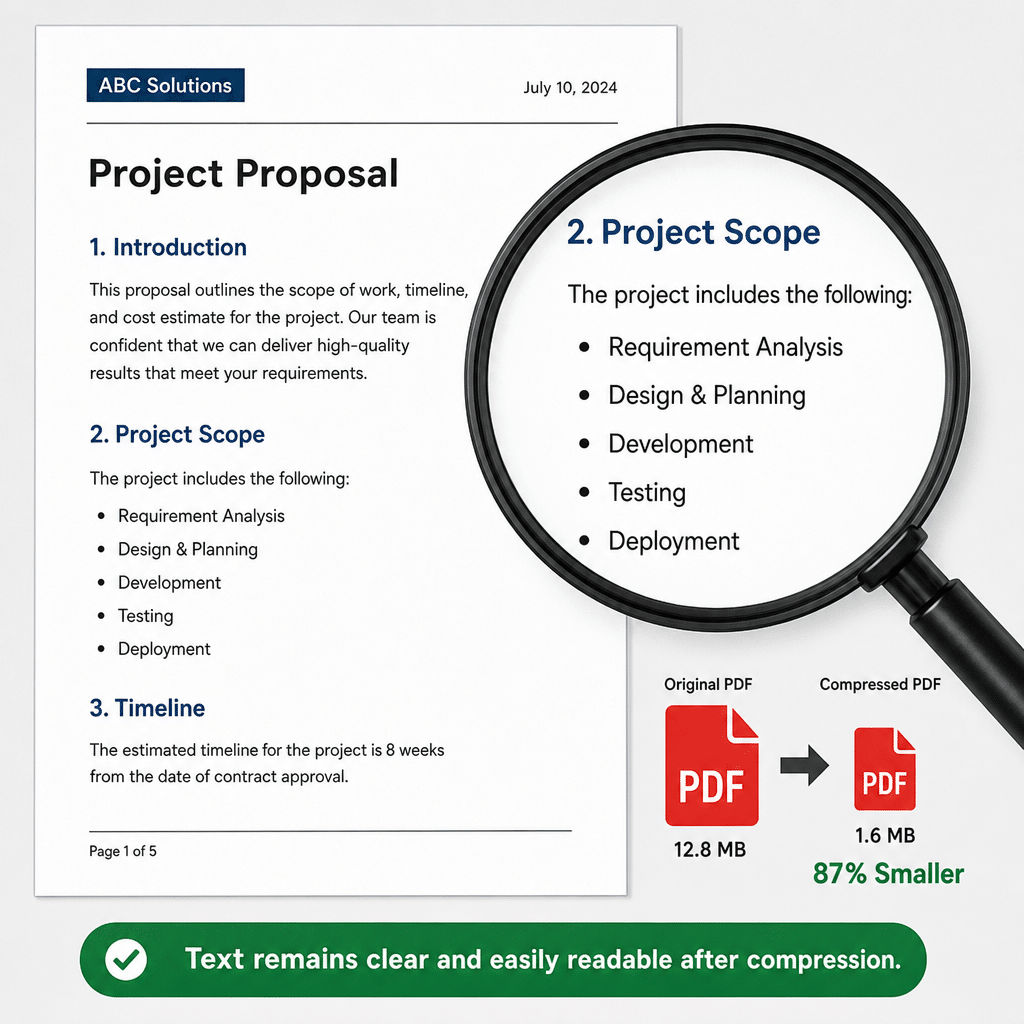
When attempting extreme file reduction, the primary concern is usually readability. Many users find themselves wondering how to shrink a pdf without losing quality. The truth is, compression always involves a trade-off between the visual fidelity of the document and its final digital footprint.
Your goal is to strike the perfect balance. You must maintain text clarity while compressing files so that the human reviewer (or automated scanning software) on the other end can actually read your submission.
Why Are PDFs So Large in the First Place?
Before you can effectively reduce pdf size to 50kb, it helps to understand what is taking up so much digital space. PDFs become bloated due to three main culprits:
- High-Resolution Images: A single photograph taken with a modern smartphone can be 3 to 5 megabytes.
- Embedded Fonts: When a PDF embeds an entire font family so it looks identical on every device, it adds significant weight.
- Hidden Data: Metadata, color profiles, and invisible layout markers silently add kilobytes.
For text-heavy documents, getting below 50KB is usually a breeze. However, if your document includes scanned elements (like a passport photo or a wet signature), you will need to apply advanced techniques, such as utilizing lossless compression for scanned documents, to preserve critical visual data while dumping unnecessary background noise.
Online PDF Compressor vs Desktop Software
When you set out to compress your files, you generally have two paths to choose from. Understanding the pros and cons of an online pdf compressor vs desktop software will help you choose the right tool for your specific situation.
Web-Based Compressors
If you are looking for speed and convenience, you will likely want to compress pdf to 50kb online. Cloud-based tools allow you to simply drag and drop your file into a browser window, click a button, and download the compressed version seconds later.
But is it safe to compress sensitive documents online? This is a highly valid concern, especially when dealing with tax forms or medical records. Reputable online compressors use strong TLS/SSL encryption to protect your files during transit and automatically delete your documents from their servers within 1 to 2 hours. Always check the privacy policy of the tool before uploading highly confidential information.
Desktop Software
If you are working with strictly confidential files, desktop software (like Adobe Acrobat Pro or dedicated offline tools) is the safer bet. All the processing happens locally on your computer’s hard drive, meaning your data never touches an external server. Desktop software also gives you much more granular control over compression settings, which is incredibly useful when trying to convert high resolution pdf to small file size.
Step by Step Guide to Downsize PDF Files
If you are ready to tackle your bulky documents, here is a straightforward step by step guide to downsize pdf files effectively.
Step 1: Choose Your Tool Find a reliable 50 kb pdf converter online or open your preferred desktop application. Many free web tools feature specific presets designed for extreme compression.
Step 2: Upload Your Document Drag and drop your oversized file into the upload zone.
Step 3: Select the Compression Level Most basic tools offer “Basic” and “Strong” compression. To hit that ultra-small target, you will almost always need to select the “Strong” or “Extreme” option. This instructs the pdf compressor 50 kb tool to aggressively compress images and strip out unneeded code.
Step 4: Download and Verify Once the process is complete, download the file. Check the file properties to ensure it is 50KB or less. More importantly, open the document to verify that the text and images are still legible.
If the standard pdf size converter 50 kb process didn’t quite get your file small enough, don’t panic. You just need to apply some advanced optimization techniques.
Advanced Techniques for Extreme File Reduction
Sometimes, a basic automated compression isn’t enough to get a media-heavy file down to a fraction of a megabyte. If you are still struggling to compress pdf to 50kb, try implementing these professional optimization strategies.
1. Adjusting DPI Settings for Smaller Files
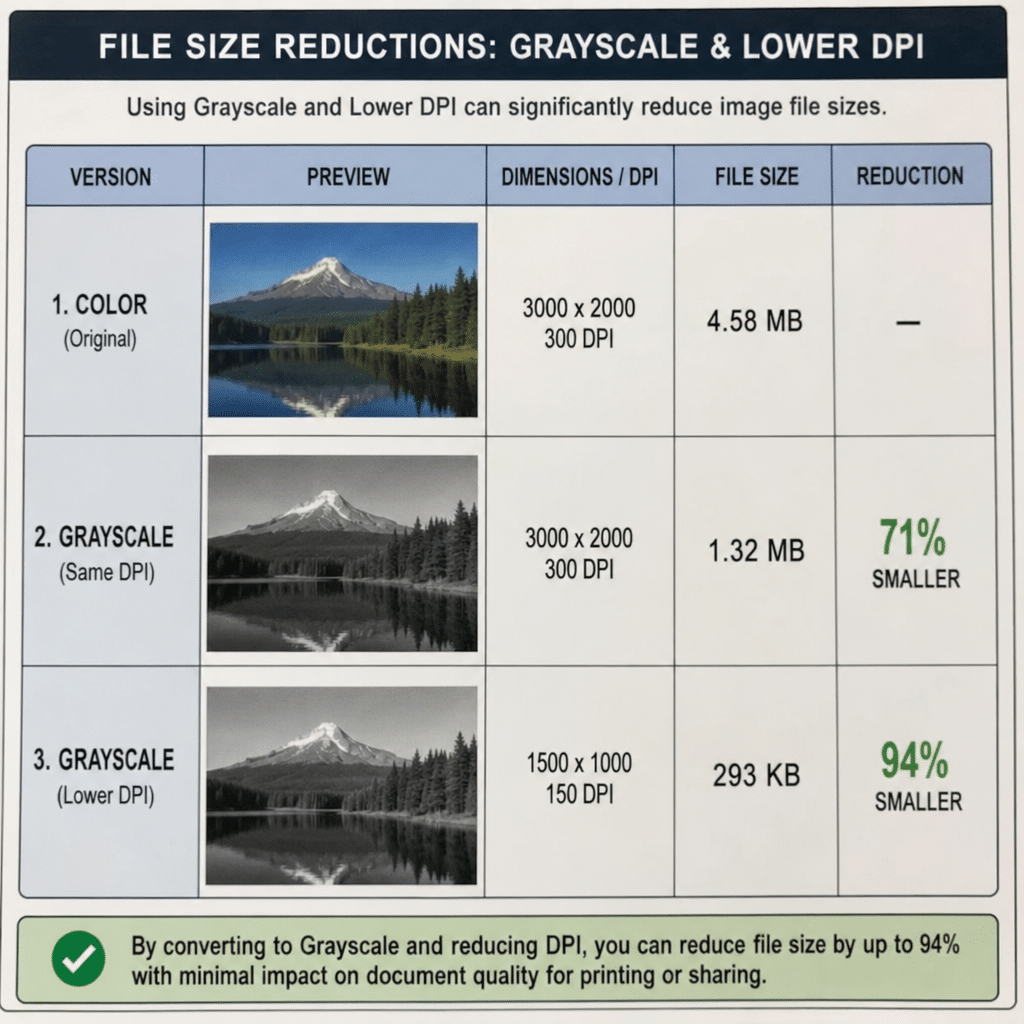
DPI (Dots Per Inch) dictates the resolution of the images and scans inside your PDF. Many modern scanners default to 300 or even 600 DPI to ensure print-quality perfection. However, screens only require 72 to 144 DPI to look crisp and clear. By adjusting dpi settings for smaller files down to 72 DPI, you can slash the file size by up to 80% without noticeably affecting how the document looks on a laptop or smartphone.
2. Shrinking Colored PDF to Grayscale to Save Space
Color images contain three channels of data (Red, Green, Blue) or four (Cyan, Magenta, Yellow, Black). Grayscale images only contain one channel of data. Unless the color is absolutely essential to the meaning of the document, shrinking colored pdf to grayscale to save space is one of the most effective ways to force a stubborn file under the 50KB limit. Most print dialogs and PDF editors have an option to “Print to PDF” or “Export” in black and white.
3. Removing Unnecessary Metadata and Embedded Fonts
Every PDF carries “invisible” data. This includes author names, creation dates, software logs, and embedded fonts. Removing unnecessary metadata and embedded fonts forces the PDF to rely on the standard fonts already installed on the viewer’s computer (like Arial or Times New Roman). Stripping this excess baggage out via a PDF optimizer is a foolproof way to shave off crucial kilobytes.
Choosing the Best Free Tools for Extreme File Reduction
You don’t need to spend hundreds of dollars on premium software to manipulate your documents. The internet is full of the best free tools for extreme file reduction.
- Smallpdf / iLovePDF: These are fantastic, user-friendly options if you want to compress pdf to 50kb online. They offer intuitive interfaces and strong compression presets.
- Ghostscript: For highly technical users, Ghostscript is a command-line tool that offers unparalleled control over file compression, allowing you to fine-tune exactly how images and fonts are handled.
- Mac Preview: If you are a Mac user, you don’t even need to download anything. You can open a PDF in the native Preview app, click “File > Export,” and choose the “Reduce File Size” Quartz filter.
- PDF24 Creator: This is an excellent free desktop tool that acts as a virtual printer. It features a robust optimization suite where you can alter DPI, image quality, and color settings manually.
Additionally, if you are a freelancer or student dealing with massive amounts of paperwork, look for software that allows you to batch process multiple pdf documents. This feature allows you to apply your custom 50KB compression rules to dozens of files simultaneously, saving you hours of tedious manual labor.
Optimizing for the Web
Once you have successfully managed to compress pdf to 50kb, there is one final optimization trick to consider if your document is going to be hosted on a website rather than submitted through an application portal.
You should ensure your document is an optimized pdf for fast web loading (a process known in the industry as “Linearization”). A linearized PDF is restructured so that the very first page loads in a user’s web browser instantly, while the rest of the document downloads in the background. While a 50KB file will load fast regardless, linearization provides the ultimate seamless user experience for web-hosted documents.
Conclusion
Hitting strict file upload limits doesn’t have to be a nightmare. By understanding what makes digital documents bulky, you can strategically dismantle the excess data without ruining the aesthetic of your paperwork.
Whether you rely on a fast online 50 kb pdf converter or dive into desktop software to tweak the DPI and color settings, you now have the knowledge to conquer any upload portal. Remember to prioritize text legibility, utilize grayscale where possible, and strip out unnecessary metadata.
Next time an application portal demands that you compress pdf to 50kb, you will be ready to optimize, upload, and submit with total confidence.