
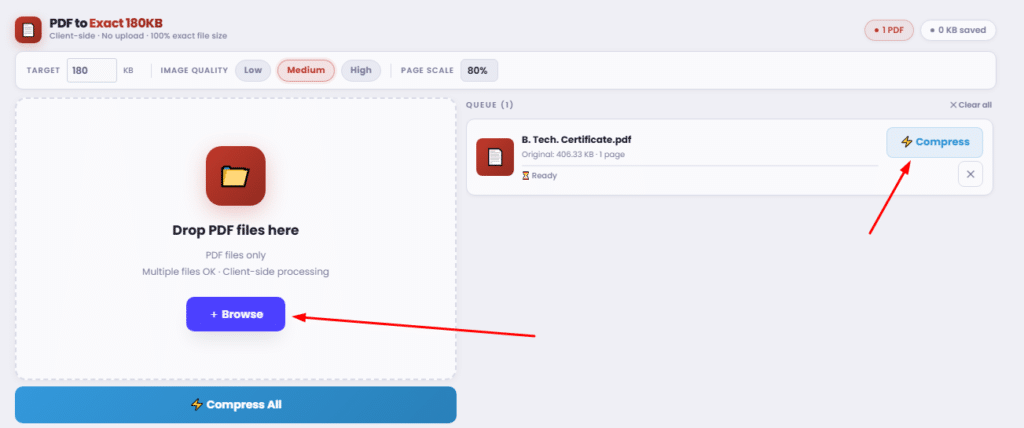
Multiple files OK · Client-side processing
Add PDF files using the panel on the left.
They'll appear here ready to compress.
Top PDF Compressors for 180KB Files
Have you ever spent hours perfecting your resume, only to be stopped by an infuriating error message: “File size exceeds maximum limit”? Whether you are applying for a new role, submitting tax documents, or sending a critical business contract, navigating strict digital boundaries can be incredibly frustrating.
Often, websites demand highly specific file sizes. You might suddenly find yourself needing a PDF compressor 180kb to bypass a strict digital gatekeeper. If you do not know how to manipulate document properties, trying to hit these precise limits can feel like a guessing game.
In this comprehensive guide, we will explore exactly how to manipulate your document sizes. From finding the perfect PDF 200 dpi converter to understanding the technical nuances of file optimization, you will learn how to take control of your digital paperwork once and for all.
The Challenge of Strict File Size Limits
The modern digital landscape is filled with storage restrictions. IT departments and web developers set strict upload limits to save server space, ensure faster webpage loading times, and maintain database efficiency.
Because of this, it is incredibly common to need a PDF file of 200 KB or smaller. If your file is even slightly over the limit, the system will reject it. This means you must find a way to fix the PDF file size, which is too large for quick and efficient use.
While it is easy to shrink large pdf for email attachments (where limits are usually a generous 20MB to 25MB), web portals are much less forgiving. You are often required to reduce a PDF file size below 200 KB without turning your text into an unreadable, pixelated blur.
What is the Best Way to Compress a PDF to a Specific Size?
Many users wonder, what is the best way to compress a PDF to a specific size? The truth is, it requires a combination of the right tools and an understanding of what makes a PDF large in the first place.
Most PDFs are bloated by high-resolution images, embedded fonts, and hidden background data. Sometimes, saving a Word document directly to a PDF using standard settings can even cause an unexpected PDF size increase of 150 KB or more, simply because the software is prioritizing print quality over digital efficiency.
To achieve a highly specific size, you need tools that offer granular control over output settings rather than a simple “compress” button.
Choosing Your Software Ecosystem
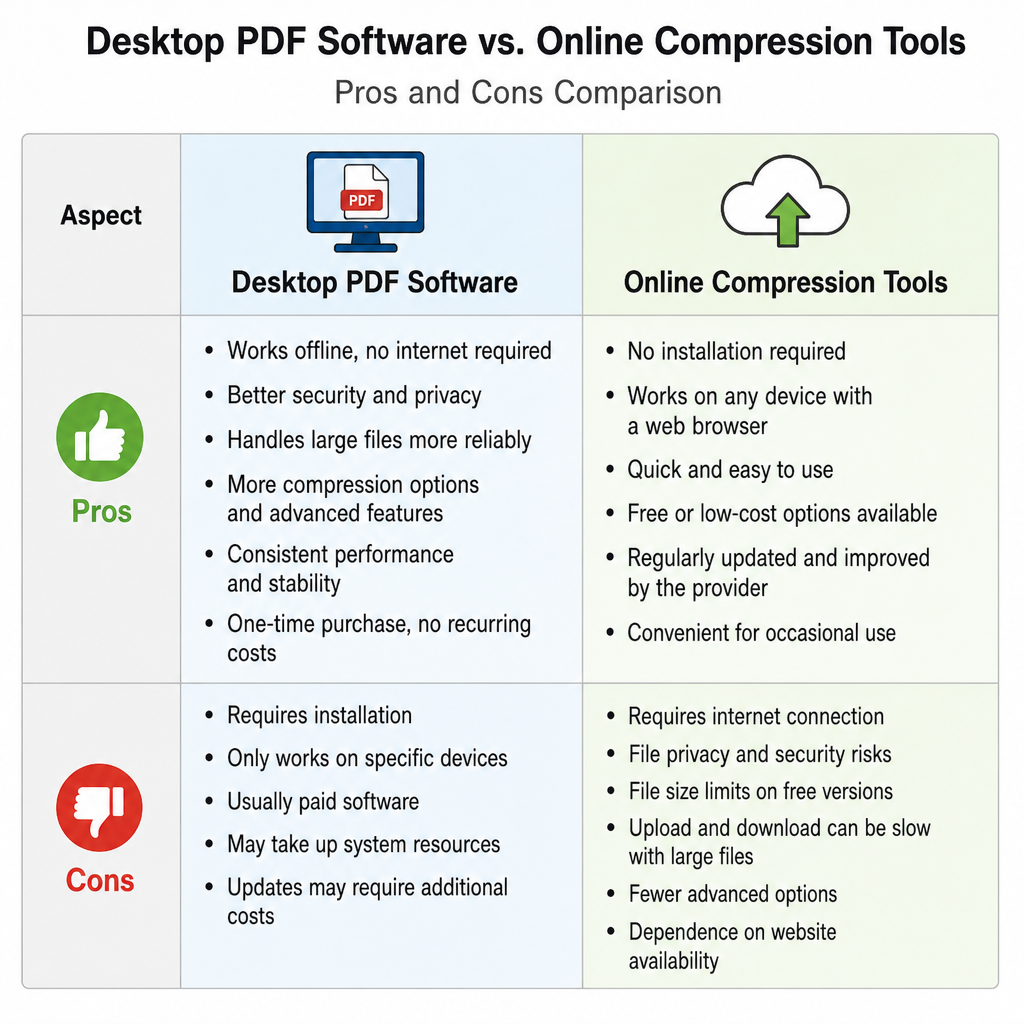
When determining your approach, you will inevitably weigh the best free PDF compression software vs online tools.
- Desktop Software: Programs like Adobe Acrobat Pro or free alternatives like Ghostscript offer incredible control. You can manually adjust colors, downsample images, and strip specific data points. However, they require installation and a bit of technical know-how.
- Online Tools: A browser-based PDF shrinking tool, no installation required, is often the fastest route. Websites like iLovePDF, Smallpdf, or specialized compression sites allow you to drag, drop, and download within seconds.
For most everyday tasks—like finding a reliable online PDF compressor 200 kb—cloud-based solutions are more than sufficient.
Step-by-Step Guide: Targeting 190KB, 180KB, and Below
When you are dealing with government databases or corporate applicant tracking systems, precision matters. Here is how to hit those exact numbers.
1. Targeting 190KB
If a portal dictates a 200KB maximum, you want to leave a small buffer. Using a dedicated PDF size reducer, 190 KB ensures you won’t trigger an automated rejection due to minor byte calculation differences between operating systems. To compress a PDF to 190kb, upload your document to an online compressor and select “Strong Compression.” If the tool offers a slider, adjust the image quality to roughly 60%.
2. Hitting the 180KB Sweet Spot
Sometimes, limits are even tighter. If you need a PDF converter, 180 KB, you must be more aggressive. To successfully compress a PDF of 180 KB, you may need to convert the PDF to a grayscale document first. Stripping color data is one of the fastest ways to shed kilobytes. Use a specialized PDF compressor 180 KB tool that allows you to discard color profiles and flatten the document.
3. Processing Multiple Documents
What if you are an HR manager or a legal assistant dealing with dozens of files? You will need bulk PDF compression for multiple files. Many premium desktop tools and paid tiers of online web apps allow batch processing. You can set a rule (e.g., “reduce all files to under 200KB”) and let the software handle the heavy lifting simultaneously.
Understanding DPI and Image Optimization
If your PDF contains scanned documents, photographs, or complex logos, images are undoubtedly the culprit behind your massive file size. To reach your target, you must optimize PDF images for a smaller file size.
The Magic of 200 DPI
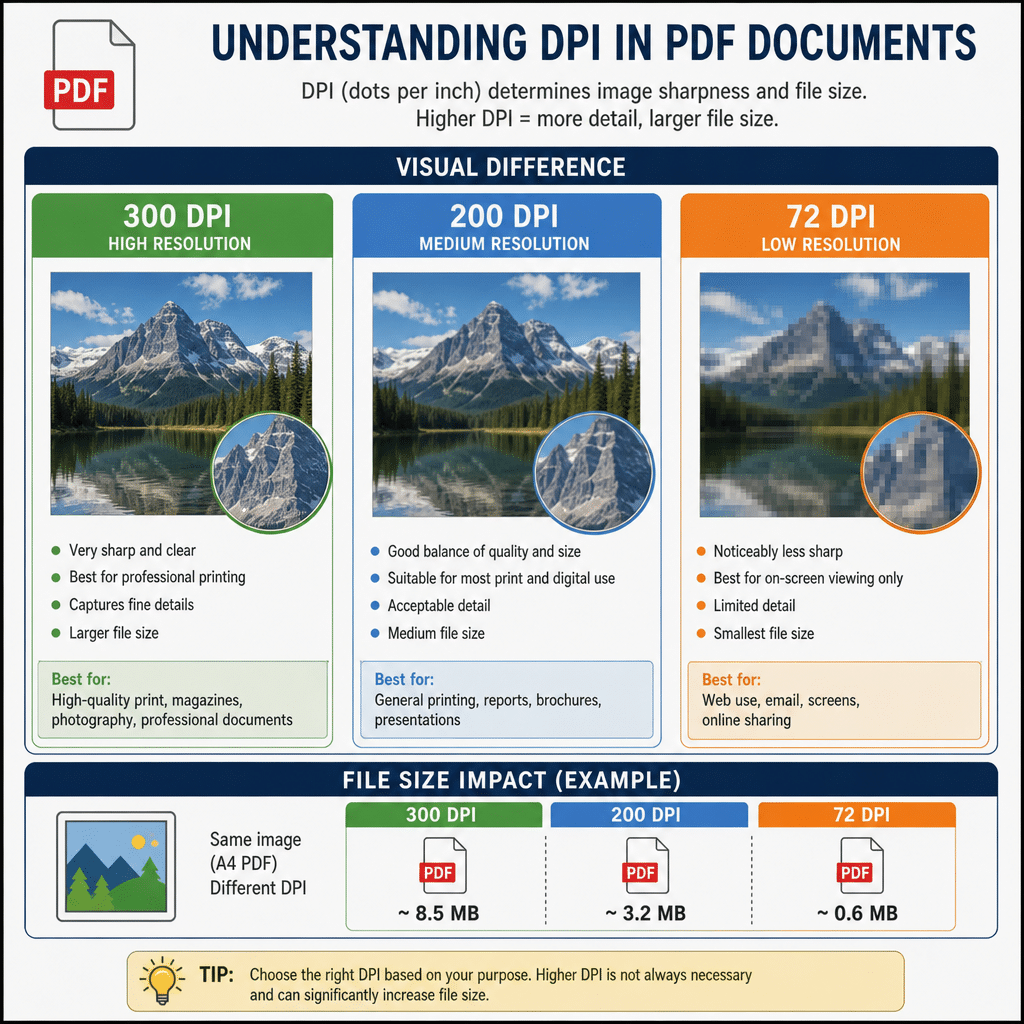
DPI stands for “Dots Per Inch.” It dictates the resolution and clarity of an image. Print materials usually require 300 DPI, but digital screens do not need anywhere near that density.
When you configure your DPI settings for document compression, 200 DPI is universally recognized as the gold standard for scanned text. It is perfectly legible for human eyes and Optical Character Recognition (OCR) software, yet it drastically reduces file weight.
By running your document through a PDF 200 dpi converter, you instantly balance clarity with economy. Setting your scanner or your software to output a PDF 200 dpi ensures the file is natively small, saving you from heavy compression later.
Adjusting Resolution
If you already have a large file, you must adjust the PDF resolution to reduce kilobytes. Most advanced PDF tools have an “Optimize PDF” or “Save as Other” function. Within these menus, you can command the software to downsample all images exceeding 250 DPI down to 150 or 200 DPI.
Lossy vs Lossless PDF Compression Explained
To truly master file size reduction, you need to understand the underlying mechanics of how software shrinks your data. You will often hear the terms “lossy” and “lossless.” Having lossy vs lossless PDF compression explained will help you choose the right method for your specific document.
- Lossless Compression: This method reduces file size by rewriting the file’s underlying code more efficiently without losing a single pixel of data. It removes redundancy. However, lossless compression rarely results in a massive size reduction. If your file is 5MB, lossless compression might only bring it down to 4.5MB.
- Lossy Compression: This method achieves extreme file size reductions by permanently discarding data that the human eye can barely perceive. It lowers image resolutions and reduces color palettes.
If you are trying to figure out how to compress a PDF without losing quality, the harsh reality is that hitting a 180KB target on a graphic-heavy document will require lossy compression. The secret is finding the balance where the quality loss is mathematically present but visually unnoticeable.
Advanced Tricks: Metadata and Hidden Bloat
If you have downsampled your images, reduced your DPI, and your file is still too large, you are likely dealing with hidden bloat.
Every time you create, edit, or save a PDF, the software attaches background information. This includes author names, creation dates, software versions, and edit histories. Furthermore, PDFs often contain embedded fonts (meaning the actual font files are packed inside the document so they display correctly on other computers).
To squeeze those last few kilobytes out of your file, you must remove metadata to decrease the PDF size.
- Flatten the PDF: This merges all layers, annotations, and interactive form fields into one single flat page.
- Unembed Fonts: If you use standard web-safe fonts (like Arial or Times New Roman), you do not need to embed them. Stripping embedded fonts can save massive amounts of space.
- Remove Hidden Objects: Use your software’s “Sanitize Document” or “Optimize” feature to delete hidden layers, bookmarks, and invisible digital signatures.
Real-World Scenarios for PDF Compression
Let’s look at how these techniques apply to common, everyday situations where you might desperately need a specific file size.
Navigating Government Web Portals
Bureaucratic websites are notorious for running on legacy systems. When applying for visas, paying municipal taxes, or submitting legal declarations, you will almost always face strict size caps. Utilizing an online pdf resizer for government portals is essential. These specific tools are usually designed to aggressively compress black-and-white scanned documents, focusing on maintaining the legibility of signatures and ID card photos while drastically cutting background noise.
Job Applications and Applicant Tracking Systems (ATS)
When you submit a resume, it usually passes through an ATS. If your file is too large, the system might time out or reject your application outright. Knowing how to resize pdf for job application forms is a vital career skill. By using standard fonts, avoiding heavy graphical headers, and utilizing a reliable PDF compressor 180kb, you ensure your resume actually reaches the hiring manager’s desk rather than getting stuck in server purgatory.
Final Thoughts and Best Practices
Dealing with digital file limits doesn’t have to be a headache. Whether you are attempting to upload a tax form or send an important portfolio, mastering PDF compression gives you back your time and peace of mind.
Remember these core takeaways:
- DPI is everything: A PDF 200 dpi is the ultimate sweet spot for scanned documents.
- Choose the right tool: Decide between desktop power and the convenience of a browser-based PDF shrinking tool, with no installation.
- Clear the clutter: Always remove metadata to decrease PDF size if you are struggling to hit those ultra-low 180KB limits.
By applying these strategies, you can confidently generate perfectly sized documents, bypass strict upload limits, and ensure your digital paperwork always flows smoothly.